Trading
Nov 13, 2026
Clear Street
How to Trade Stocks on TradingView with a Connected Broker

Learn how to connect your brokerage account to TradingView and start trading stocks. We walk through the process step-by-step.
TradingView is one of the most popular charting platforms among active traders thanks to its customizable indicators and advanced scripting capabilities. But TradingView isn’t a broker, so it can’t hold funds or execute trades on its own.
If you want to place trades directly in TradingView, you need to connect a third-party brokerage account. In this guide, we’ll walk you through how to connect your Clear Street brokerage account to TradingView and how to trade stocks directly from your TradingView charts.
Connecting Your Brokerage Account to TradingView
In order to connect a brokerage account to TradingView, you first need a compatible broker and a TradingView account.
TradingView supports more than 100 brokers, including Clear Street. Clear Street stands out for its modern execution stack, advanced low-latency order routing, and an integrated locate workflow for short selling. It’s fully supported on TradingView for stock, ETF, and options trading, and opening an account is free.
You can connect a broker to any TradingView account tier, including the free Basic account. All trading features are available with a Basic account, although you’ll need to upgrade for access to community trading contests.
With your Clear Street and TradingView accounts activated, here’s how to connect them:
- Log in to TradingView.
- Open TradingView’s “superchart” for any ticker by selecting Products > Supercharts from the main navigation menu.
- Click the Trade button in the upper right-hand corner of the screen.
- Select Clear Street from the broker selection menu, then click Connect.
- Log in to your Clear Street account and click Allow Access to complete the connection.

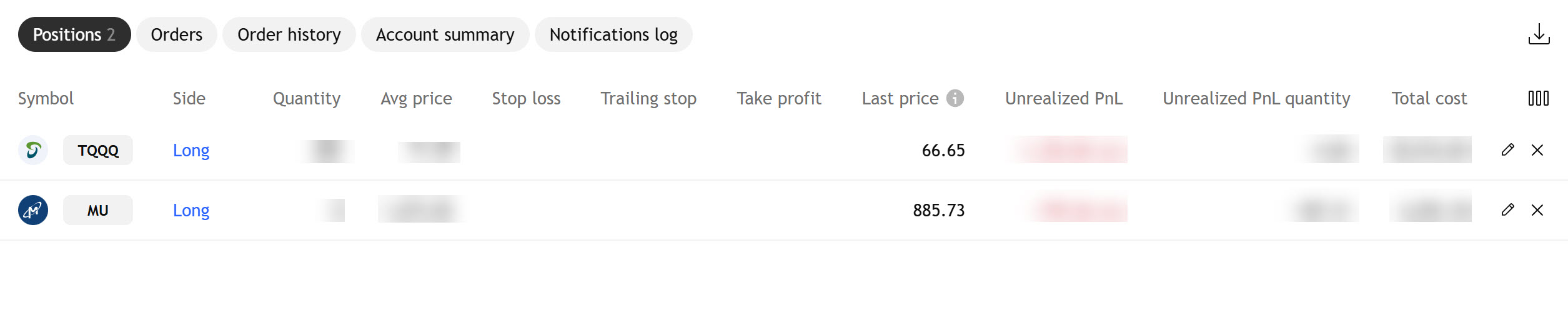
You should now see the Trading Panel at the bottom of your TradingView charting window showing your Clear Street account details, including any open positions, your total account value, and your realized and unrealized profit/loss for the day.
Placing Trades in TradingView
You can place and manage trades in TradingView using either an order ticket panel or directly from your charts. We’ll walk through both options.
Finding Tradeable Symbols
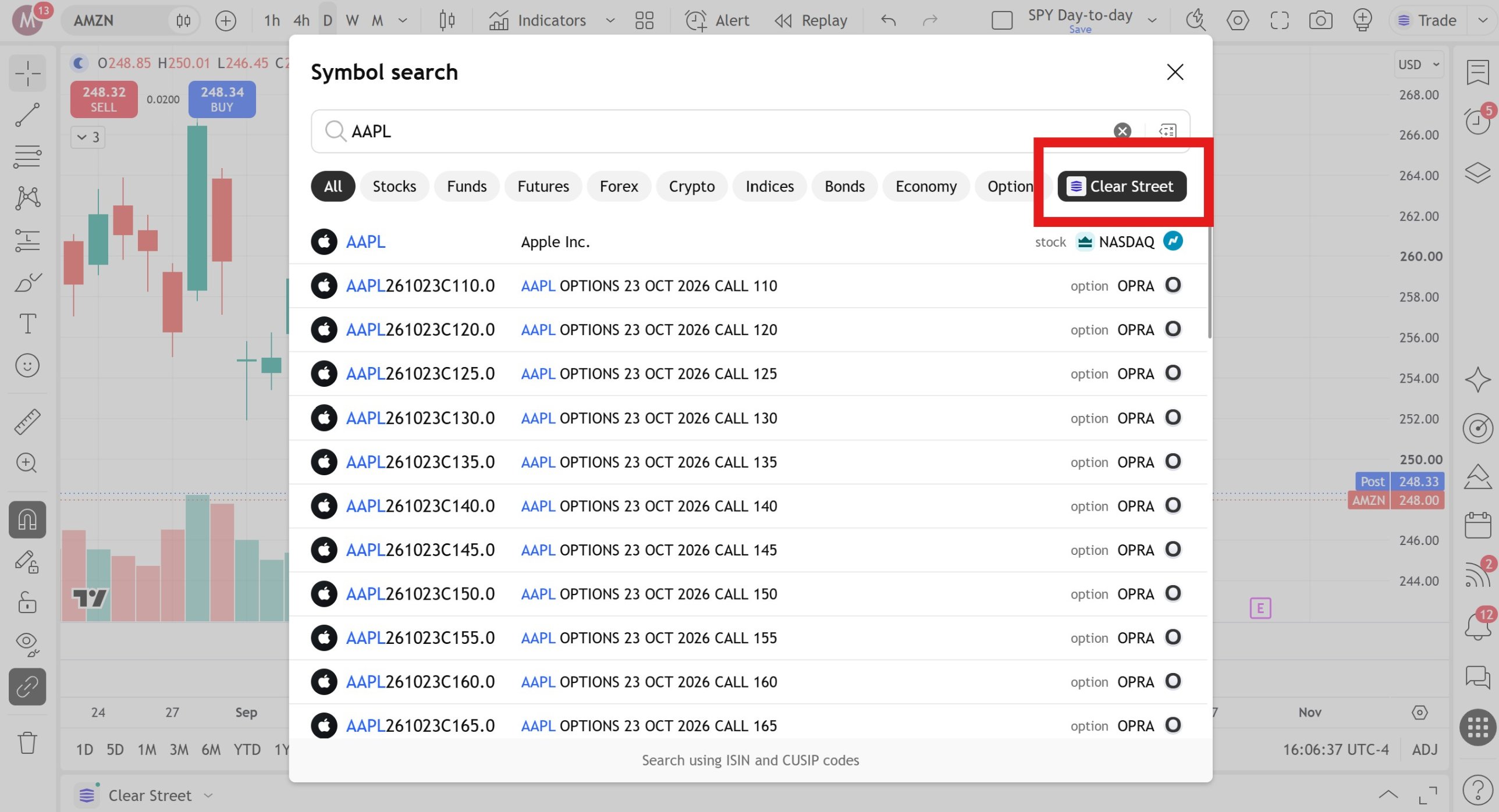
First, you need to navigate to a tradeable ticker in TradingView’s Supercharts platform. With Supercharts open, click the symbol search, then select Clear Street on the right to filter for tickers that are available to trade through your account. You can then search for a specific ticker.
Trading with the Order Panel
To access the order panel, click the Trade button in the upper right-hand corner of the Supercharts window.
You’ll see all the same trade options you have in Clear Street’s native order panel: you can choose to buy and sell, select order types including market, limit, stop, and stop limit orders, and select your quantity. You also have the option to submit bracket orders that include take profit and stop loss levels with your initial order.
You can choose the time in force for your order and how it should be routed. When ready, click the Buy or Sell button at the bottom of the ticket. TradingView will stage your ticket and display the order details for review. Click Send Order to submit it for execution.
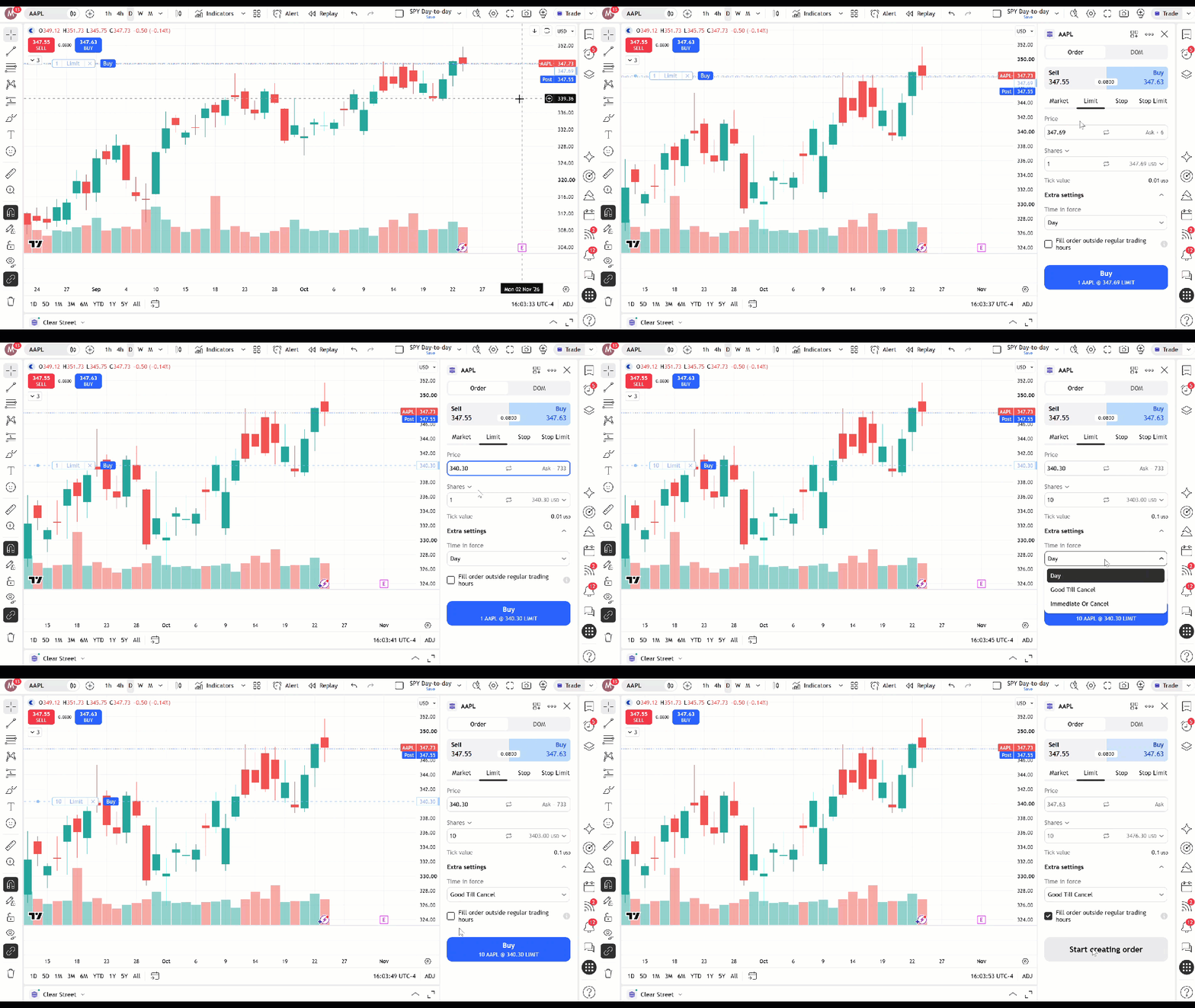
Once your order is placed, it will appear in the Orders view in the Trade Panel at the bottom of the screen, and you’ll see a horizontal line on your chart at your order price. Upon execution, the position will display in the Positions view of the Trade Panel, and the profit and loss of your trade will be displayed on your chart.
Trading from Your Chart
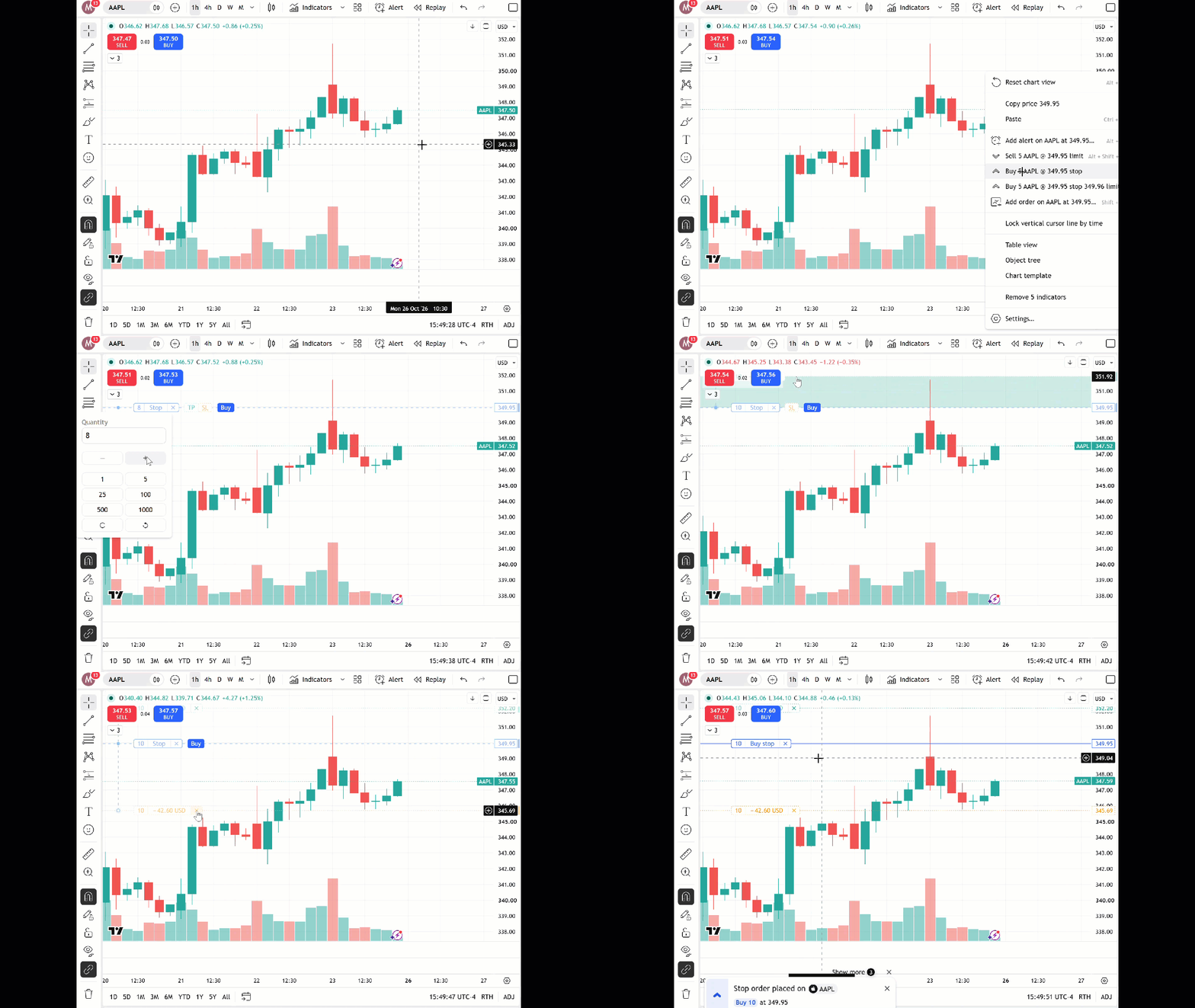
You can also place and manage trades directly from your TradingView charts. To open a trade from your charts, right-click at the price level at which you want to enter an order. Then select an order option from the drop-down menu or click Add order on [Ticker] at [Price].
A visual indicator will appear on the left side of your chart showing the quantity and order type, which you can adjust. You can also click and drag the indicator up or down to adjust the price for your order.
Click and drag the TP symbol up or down on your chart to add a take profit to your order at a desired price. Similarly, click and drag the SL symbol up or down on your chart to add a stop loss.
When you’re ready, click Buy or Sell to place your order.
Trading Settings to Consider
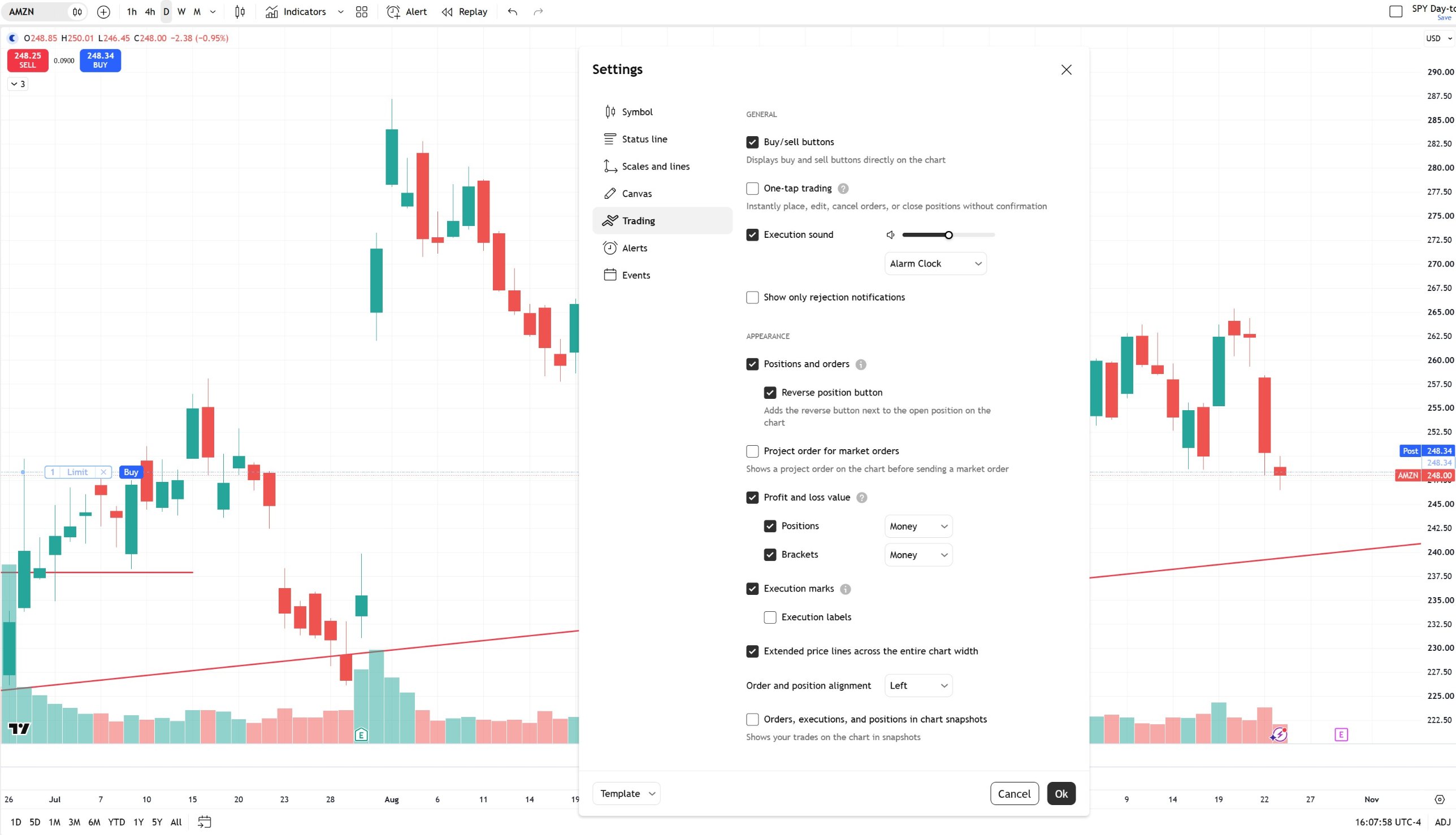
TradingView offers several settings for trading with a connected brokerage account that are important to know about.
- One-tap trading: By default, TradingView requires you to review and confirm order tickets before they are submitted. With one-tap trading enabled, trades are submitted as soon as you click Buy or Sell, without a confirmation step.
- Order presets: You can create templates for your orders to pre-populate them with quantities, order routing, and more for quick order entry.
- PnL display: On-chart indicators displaying your profit or loss on a trade can show the dollar value, number of ticks, or percent change from your entry.
- Execution alerts: You can select whether a sound plays when orders are executed. By default, TradingView displays a notification, but doesn’t sound an alert.
You can find these settings by clicking the Trade button in the upper right-hand corner of the screen, then clicking Trading Settings.
Connect Your Clear Street Account to TradingView Today
Connecting your Clear Street account to TradingView allows you to combine TradingView’s charting and analysis capabilities with Clear Street’s modern execution engine and low-latency order routing. It’s a powerful way to speed up your trading workflow and gain the ability to trade directly from your charts.
Ready to trade stocks on TradingView? Open a Clear Street account today to get started.
Products and services offered by Clear Street LLC, member FINRA, SIPC, CFTC and NFA. Additional information about Clear Street is available on FINRA BrokerCheck, including its Customer Relationship Summary.
Clear Street does not provide investment, legal, regulatory, tax, or compliance advice. Consult professionals in these fields to address your specific circumstances. These materials are provided for informational purposes only and subject to change without notice or obligation to replace any information contained therein. This is not an offer, solicitation of an offer, or advice to buy or sell securities, or open a brokerage account in any jurisdiction where Clear Street is not registered. Securities trading, particularly trading on margin or using options, involves significant risk and is not suitable for all investors.
Related blogs