
Omni
Oct 22, 2026
Clear Street
How to Use AI to Place Trades

Learn how to place trades using AI. We cover which brokers support AI execution and walk you through how to place trades with your LLM.
Placing trades with AI lets you build an order ticket from a plain-English description and manage open positions with conversational commands. It can reduce the time spent manually entering prices and contract details.
In this guide, we’ll walk through everything you need to know about using AI to place trades, including how to connect your LLM to your brokerage account and how to prompt AI to build accurate order tickets.
Trading with AI: Smart Copilots vs. Autonomous Algorithms
Before we dive in, it’s important to understand the distinction between trading with an AI copilot and using an autonomous AI trading algorithm.
Trading with an AI copilot involves using conversational AI like ChatGPT, Claude, or Clear Street’s Omni AI to create order tickets that you review and confirm for execution. You explain the trade you want to take in plain English, and the AI will generate a brokerage-readable order ticket for you to review.
This is a newer way to trade, enabled by advances in LLMs. Importantly, when trading with an AI copilot, an order will only be submitted for execution after you’ve reviewed and approved it.
Trading with an autonomous AI algorithm is different. Instead of placing orders one at a time using conversational language, you create a set of entry and exit rules that an AI-powered trading bot or AI agent can follow. When the algorithm identifies a setup that meets your entry rules, it will automatically execute a trade with your brokerage without waiting for explicit approval.
Algorithmic trading of this kind has been around for decades, and AI has simply made it more adaptable for complex strategies. For example, AI enables strategies to analyze charts or recognize patterns that can’t easily be hard-coded into rigid rules.
In this guide, we’ll focus specifically on placing trades with an AI copilot. Many traders prefer this approach because every order requires your review and confirmation before it is sent.
What You Need to Get Started
ChatGPT, Claude, and most other LLMs can’t place trades in your brokerage account out of the box. They don’t have access to your account. And even if you give the AI access, many brokers don’t have a way to accept orders from AI chatbots.
One solution to this is to use a broker that offers a trading Model Context Protocol (MCP) server. An MCP server converts the plain-text instructions you give your AI chatbot into code-based commands that your broker’s API can understand.
The catch is that not all brokers offer trading MCP servers, and not all of those support order staging or execution. In addition, not all MCP servers are compatible with all LLMs. Clear Street’s MCP, which does support placing orders with AI, is compatible with Claude, Claude Code, and ChatGPT.
Another option is to use a brokerage firm with a built-in AI chatbot, like Clear Street’s Omni AI. Omni AI is built specifically for trading and is integrated directly into your brokerage account, so you don’t need to find an MCP server or confirm that your LLM is compatible.
We’ll walk through how to trade with AI using both approaches.
How to Place a Trade with Omni AI
Omni AI is integrated directly into your Clear Street brokerage account and has access to live market data by default.
Step 1: Develop Your Trade
If you’re still working out the details of your trade, Omni AI can help you research the market and analyze trade opportunities. It can also provide information on options contracts relevant to your thesis and help you size a position. Output is informational only and is not advice.
Step 2: Prompt Your Order
Once you know what you want to trade, you can prompt Omni AI to create and stage an order ticket for you. There are two ways to approach this. If you’ve developed your trade idea with Omni AI, the chatbot will typically display a button you can click at the end of its response to turn your idea into an order ticket. Alternatively, you can prompt Omni AI directly with a description of the order you want to create.
Omni AI offers a wide range of order-creation capabilities. For example, you can ask it to build market or limit orders as well as multi-leg options orders. You can also ask Omni AI to stage tickets for multiple trades on different tickers at the same time, which is particularly helpful for pair trading.
You can define your position size in multiple ways, including by number of shares or contracts, the maximum amount you want to risk, or a percentage of your portfolio.
Omni AI can prepare a stop-loss or take-profit on your order, and it will create tickets for those alongside the original order ticket. Stop losses can be based on a specific price or maximum risk, trailing price, or even built on technical metrics (e.g. stop at 2% below the current price of a moving average). Stop orders do not guarantee execution at your stop price.
Here’s an example prompt:
Build an order ticket for a long straddle on [TICKER] using [expiration] options. I want to risk a maximum of [$ amount] on the trade.
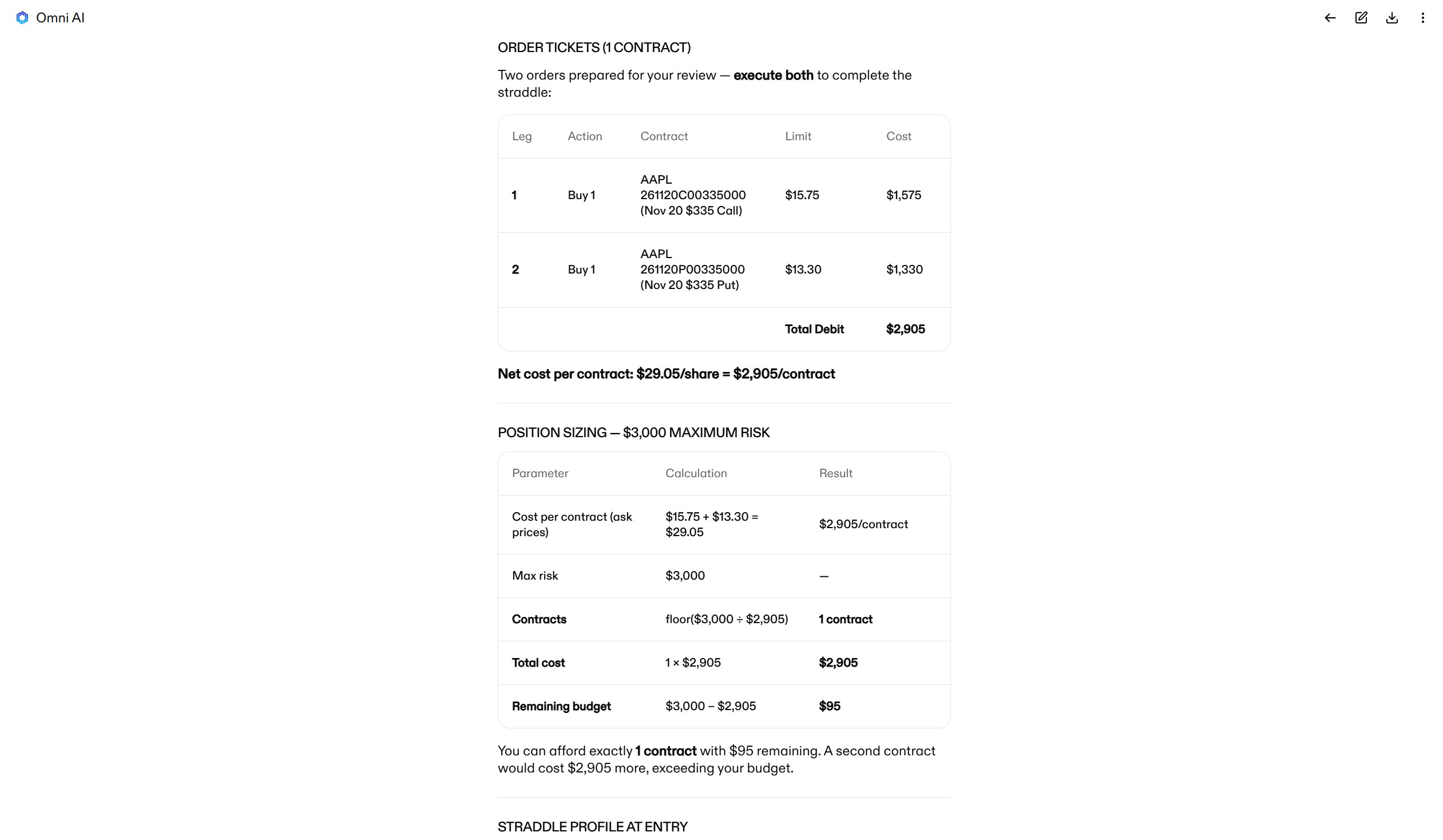
Step 3: Review the Order Ticket
Once Omni AI generates an order ticket, review it carefully. AI can make mistakes or misinterpret your instructions, and this review step lets you correct the ticket before submitting it for execution.
Be sure to check:
- Action and leg direction (buy to open vs. sell to open)
- Strike prices and expiration dates
- Order type (market vs. limit) and limit price
- Position quantity and multiplier
- The order’s time in force (day vs. good-til-canceled)
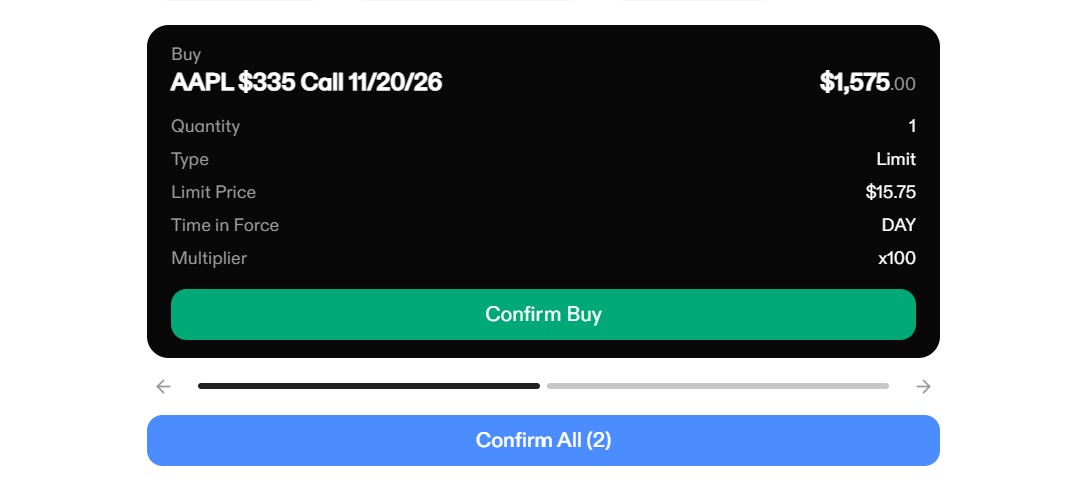
Step 4: Confirm and Place Your Order
Once you’ve confirmed that your order is correct, click the Confirm Buy or Confirm Sell button on each ticket to submit them one at a time. Or click Confirm All to submit all of the tickets simultaneously. After you confirm, Omni AI sends your orders for execution.
How to Place a Trade Using an MCP Server
Omni AI is the built-in option for placing trades from your brokerage platform. If you don’t have access to Omni AI or prefer using your LLM, you can connect to an MCP server.
In order to place trades using an MCP server, you’ll need a brokerage with a trading MCP server that supports order execution and a compatible AI chatbot.
Begin by connecting your LLM to Clear Street’s MCP server and your brokerage account. Clear Street’s MCP server is compatible with Claude, Claude Code, and ChatGPT, although the setup instructions vary slightly between these chatbots.
In short, you need to provide your chatbot with the URL for Clear Street’s trading MCP server (https://api.clearstreet.com/v1/mcp/trading). Then sign in to your Clear Street brokerage account to give your LLM a limited access token to interact with the broker’s API. Clear Street’s MCP server uses token-based authorization, so you do not enter your Clear Street login credentials into the LLM.
Once your AI chatbot is connected to Clear Street’s trading MCP server, placing orders works similarly to how it does with Omni AI. MCP-connected chatbots have access to the same functions, including building multi-leg orders, generating stop-loss tickets, and sizing positions based on your account balance. You’ll also have a chance to review AI-generated order tickets and they’ll only be sent for execution once you confirm them.
Managing Open Trades with AI
Once you have open orders or active positions, you can manage them using Omni AI or an MCP server-connected chatbot. Examples of things you can prompt AI to do include:
- Adjusting a stop loss higher on a profitable trade
- Splitting a single take profit order into multiple orders at different levels
- Adjusting the size or entry price of an open order
- Canceling one or all open orders
- Closing one or all open positions
You can also use AI to view all your open positions, check your buying power, review your profit and loss, and check your historical orders.
Start Trading with AI at Clear Street Today
Placing trades with AI can help you build and review order tickets faster. Trading involves risk, including loss of principal. With an AI copilot like Omni AI, every order requires your review and confirmation before it is sent. With Clear Street’s MCP server, you can also trade with your favorite LLM, including Claude, Claude Code, and ChatGPT.
Open a Clear Street account today to get started.
Important Disclosures
Securities offered through Clear Street LLC, member FINRA/SIPC.
Not an offer or solicitation where Clear Street is not registered.
All investments involve risk; past performance does not guarantee future results.
Options involve risk and are not suitable for all investors. Read the Options Disclosure Document before investing.
Margin borrowing increases risk; you can lose more than you deposit.
Information is for informational purposes only, is not an offer, and may change without notice.
System response and execution times are affected by market and system factors.
Omni AI (Clear Street Technologies LLC) is informational only, not advice; every order requires your confirmation.
Clear Street’s MCP server connects third-party AI tools that you choose to your Clear Street account. Clear Street does not control or endorse those tools, and their output is not investment advice from Clear Street. Every order requires your confirmation.
Products and services offered by Clear Street LLC, member FINRA, SIPC, CFTC and NFA. Additional information about Clear Street is available on FINRA BrokerCheck, including its Customer Relationship Summary.
Clear Street does not provide investment, legal, regulatory, tax, or compliance advice. Consult professionals in these fields to address your specific circumstances. These materials are provided for informational purposes only and subject to change without notice or obligation to replace any information contained therein. This is not an offer, solicitation of an offer, or advice to buy or sell securities, or open a brokerage account in any jurisdiction where Clear Street is not registered. Securities trading, particularly trading on margin or using options, involves significant risk and is not suitable for all investors.
Related blogs
.avif)
.avif)

.svg)